How do I set which Nutrition Balance Meter to view in Cronometer mobile app?


Currently, my mobile app on Andriod only displays my Omega-6:Omega-3 balance meter. An AI search says To set which Nutrition Balance Meters to view in the Cronometer mobile app, navigate to More > Display (or More > Display Settings). From there, you can choose which specific nutrient balances you would like to focus on and display in your diary.
However, when I do that, I see no options to select a meter. Did the app change?
Feed Freedom with Knowledge
Answers
-
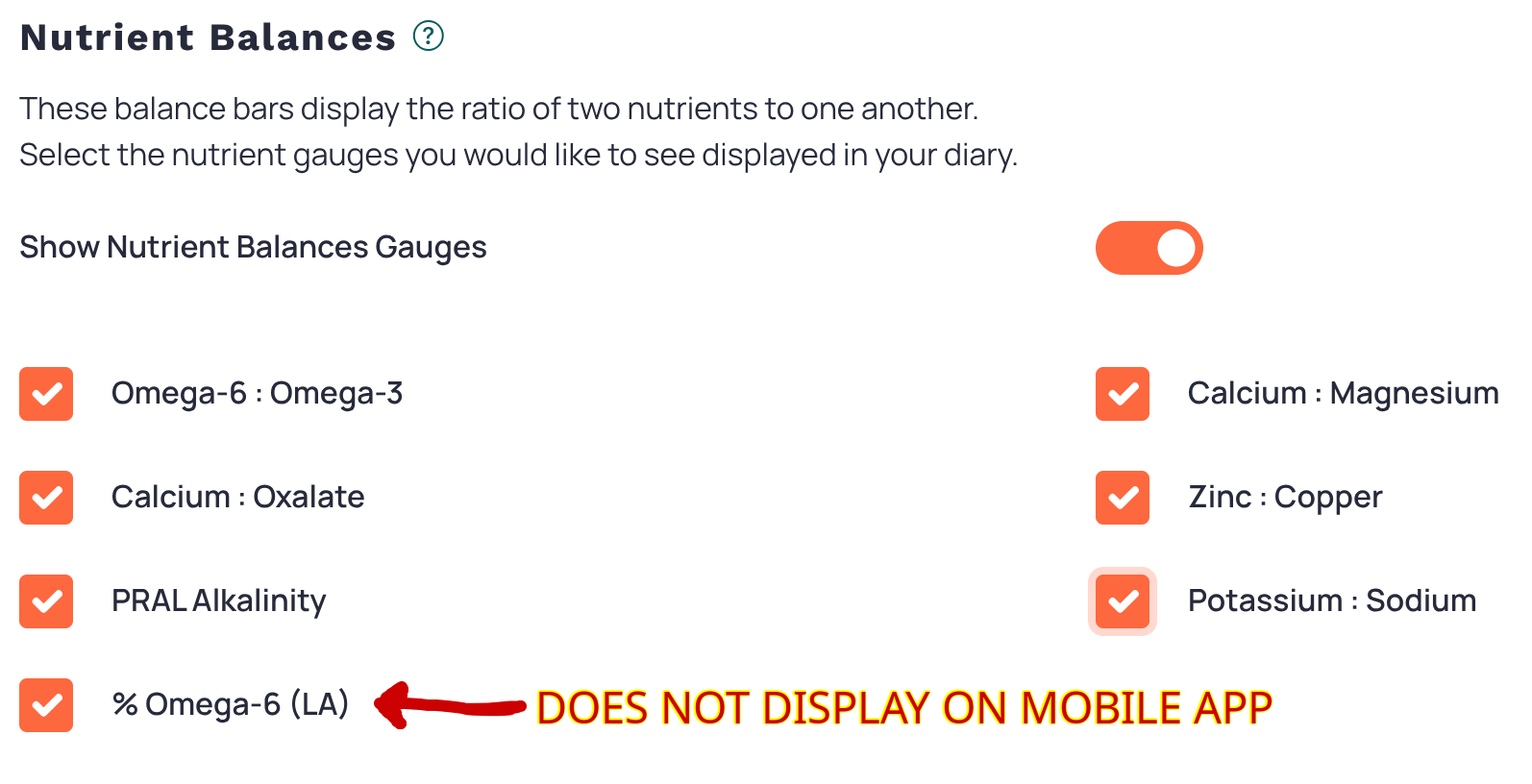
Comparing my mobile app to my PC computer web page app, I see a disconnect between the two. It seems the mobile app does not control what you can see for Nutrient Balance Meters. I have found that the Web version controls what meters appear on the mobile. On the web, goto More > Display Settings > Nutrient Balances, and you will see the selections available to toggle ON/OFF on the web and mobile app. Seven (7) meters are displayed, but only six (6) will display on the mobile. For some reason, % Omega-6 (LA) will not display on the mobile app. I don't know if that is on purpose or not. That's the meter I wanted to see working on the mobile. It seems the instructions for all these features may not be up to date yet, and so a user can end up wasting a lot of time trying to sort out details such as this. Cronometer is a wonderful program, but I suspect it still has growing pains.
Here is a screen shot I annotated for future reference. I have a Gold account, so I don't know why it does not show.
Maybe Cronometer programmers can fix it.
Feed Freedom with Knowledge